🧭 How to Update the Branding on Your CMA Report
You can easily customize your CMA (Comparative Market Analysis) report to reflect your personal or company branding. The branding editor is designed to be fully WYSIWYG (What You See Is What You Get), allowing you to update your profile details, colors, and logos in real time.
Step 1: Click a Branding Element to Open the Editor
From your CMA preview or live report view, click either of the design/branding elements:
Your personal information block (profile photo, name, title, email), or
Your company logo in the top-right corner.
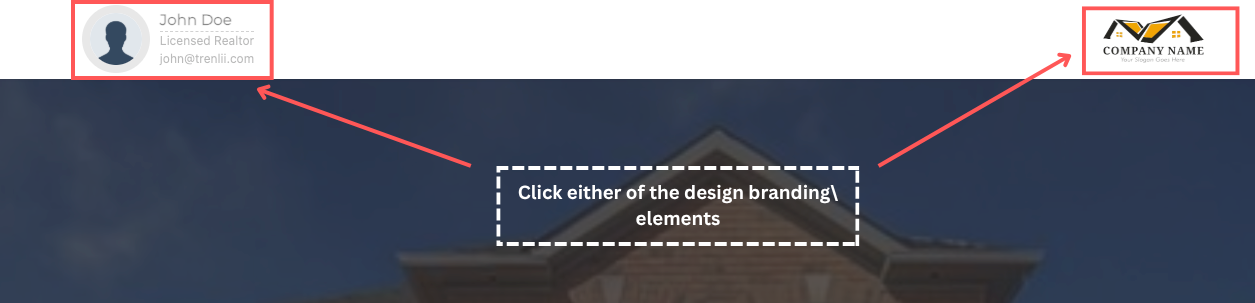
When you click one of these areas, a branding editor modal will appear — this is where you’ll make your updates.
Step 2: Update Your Branding Settings
In the modal, you can update all your branding details using a simple click-to-edit interface:
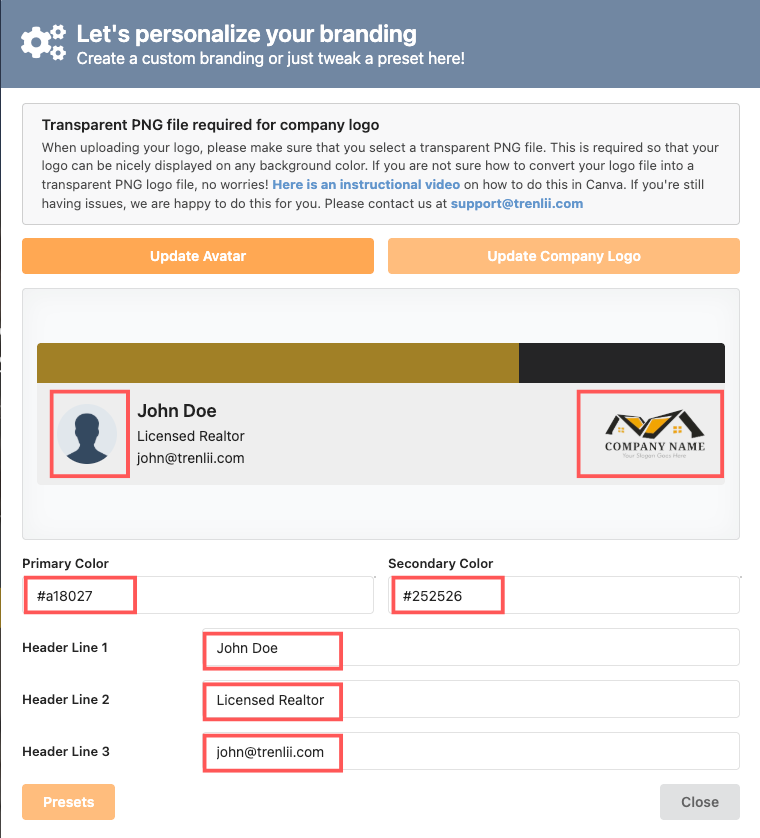
Here’s what you can change:
🖼️ Profile & Logo
Update Avatar — upload your personal or team photo.
Update Company Logo — upload your transparent PNG logo (a transparent background is recommended for best display on all backgrounds).
💡 Tip: If you don’t have a transparent version of your logo, you can use tools like Canva to remove the background.
🎨 Brand Colors
Primary Color and Secondary Color fields let you define your custom color scheme using hex codes (e.g.
#a18027).
🧾 Text Headers
Header Line 1 — your name
Header Line 2 — your title (e.g. Licensed Realtor)
Header Line 3 — your contact email
Each field is fully editable — just click and type your updates.
When you’re done, your preview will automatically refresh with the new colors, text, and logo.
Step 3: Save and Apply
Once you’re satisfied with your changes, click Close to save. Your new branding will be instantly applied to all newly generated CMA reports.
✅ Summary
What You Can Update |
Example |
|---|---|
Profile Photo |
“Update Avatar” button |
Company Logo |
“Update Company Logo” button |
Primary & Secondary Colors |
|
Header Lines |
Name, title, and email |
Real-Time Preview |
WYSIWYG — changes appear instantly |